Published
Move from Studio Ninja or ShootQ to Rawberry, automatically
No CSV exports, no copy and paste, no weekend lost to retyping clients. One click in your bookmarks bar copies your whole studio across, and you check every record before it's added.
The short answer
To move from Studio Ninja or ShootQ, make a free Rawberry account, go to Integrations, and add the one-time Copy to Rawberry button to your bookmarks bar. Click it while logged in to your old CRM. In 10 to 15 minutes it copies your clients, jobs, invoices, payments, contracts, questionnaires, files, email history, templates and workflows. You review everything, then import it, and you can undo the whole import in one step.
Studios are already moving
Photographers are using the importer today to bring years of work across. Here's what a single import moved for one wedding studio coming from Studio Ninja, without anyone typing a record by hand.
- Clients
- 1,083
- Emails, with threads
- 2,179
- Payments
- 550
- Questionnaires
- 255
- Invoices
- 208
- Jobs
- 134
- Contracts
- 133
- Copy time
- ~13 min
Why switching CRMs usually hurts
Most photography CRMs let you download a contact list, and that's it. Your jobs, invoices, payment history, signed contracts, questionnaire answers and email threads stay behind. So most photographers either pay for two CRMs for a year or never switch at all.
We built the importer so the move takes one sitting, not one season.
- No CSV wrangling
- It reads your account the same way your browser already does, so nothing needs to be exported, cleaned up or mapped column by column.
- Your password stays yours
- The copy runs in your own browser tab. Rawberry never sees your Studio Ninja or ShootQ password, and nothing in your old CRM is changed.
- Nothing lands until you say so
- Everything is staged first. You see the counts and examples, then choose to import.
- One-step undo
- Changed your mind? Undo this import removes everything it added.
What comes across
Both importers bring the records you work from every day, with the links between them intact: each invoice stays on its job, each job on its client.
From Studio Ninja
- Clients, jobs and open leads, with job types and lead sources
- Invoices and every payment against them
- Contracts and questionnaires, with your clients' answers
- Job notes, job tasks and attached files
- Email history on each job and lead (optional)
- Email, contract and questionnaire templates, products, packages and workflows
From ShootQ
- Contacts, jobs and active leads, with couples linked as partners
- Invoices with their payments
- Proposals, contracts and questionnaires
- Products, services and packages
- Job notes, job tasks and attached files
- Email history on each job and lead, with attachments (optional)
- Email, contract and questionnaire templates and workflows
How it works, in five steps
You'll need a desktop browser with a bookmarks bar, your old CRM login, and about 15 minutes. The steps are the same for Studio Ninja and ShootQ.
-
Make your import button
In Rawberry, open Integrations and pick Studio Ninja or ShootQ. Click Make a new import button and drag Copy to Rawberry to your bookmarks bar. The button is made for your studio alone and works only for this one import.
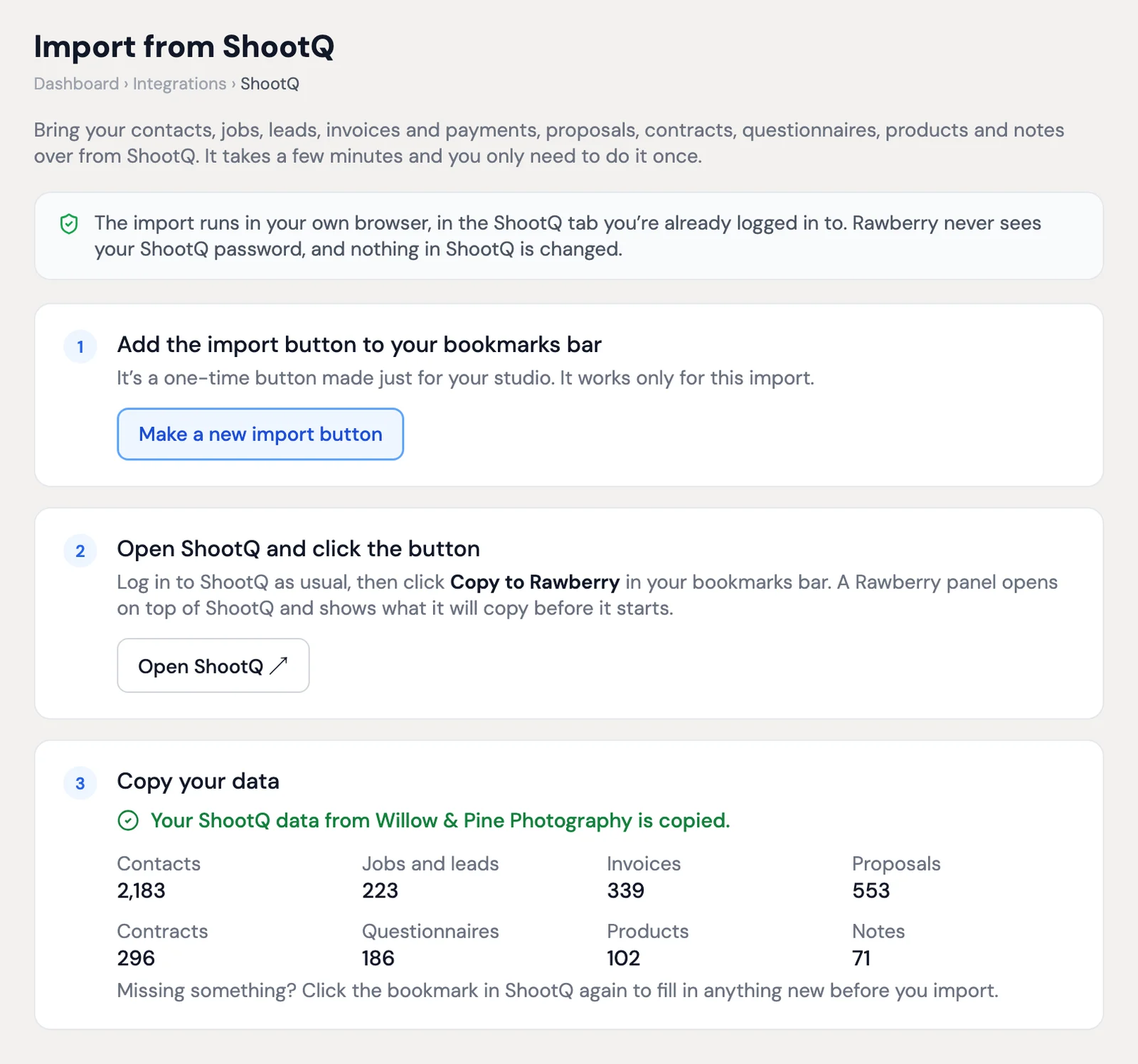
The import page in Rawberry. Each step turns green as you finish it. -
Open your old CRM and click the button
Log in to Studio Ninja or ShootQ as usual, then click Copy to Rawberry. A small panel opens on top of your CRM and tells you exactly what it's about to copy, and roughly how long it will take.
Two choices are up to you. Email history is the slowest part, so you can leave it out. Years of closed or lost inquiries are off by default, so your new leads list starts clean.
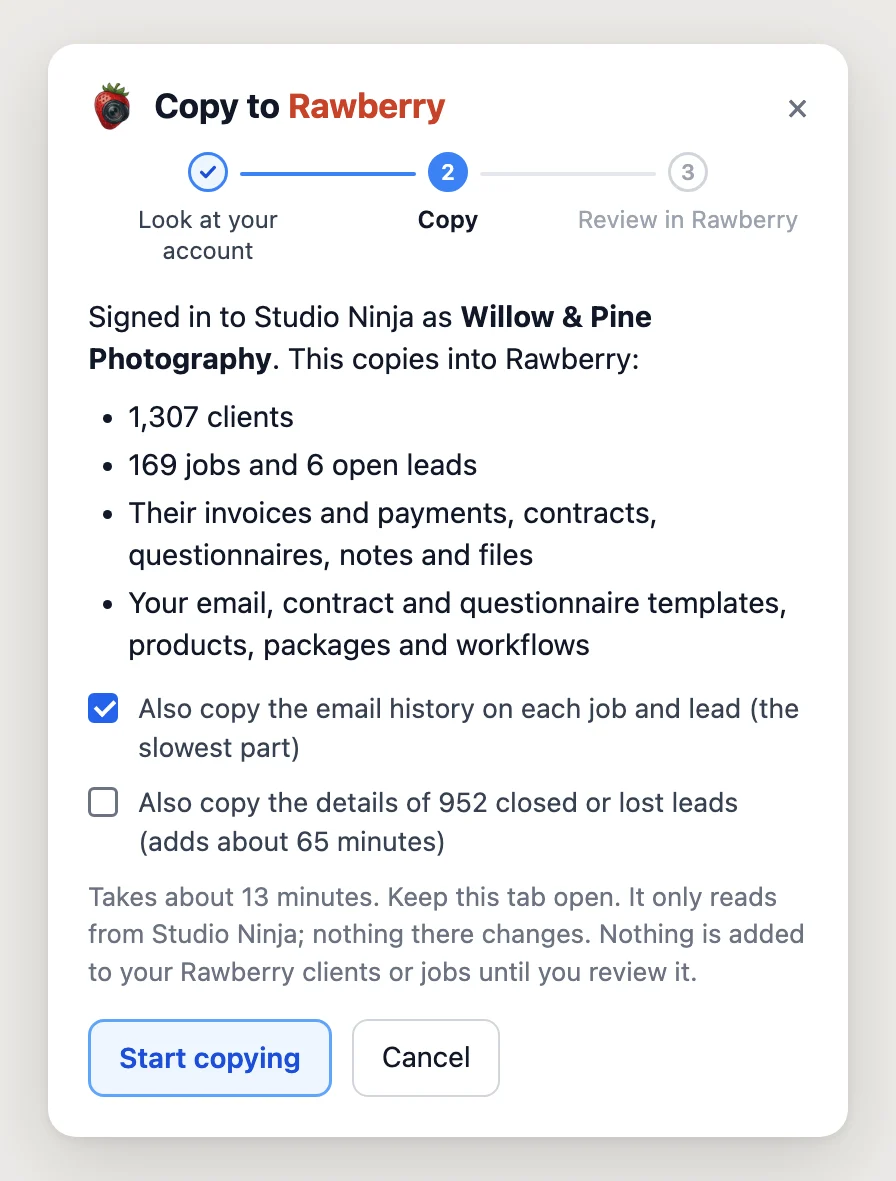
In Studio Ninja. 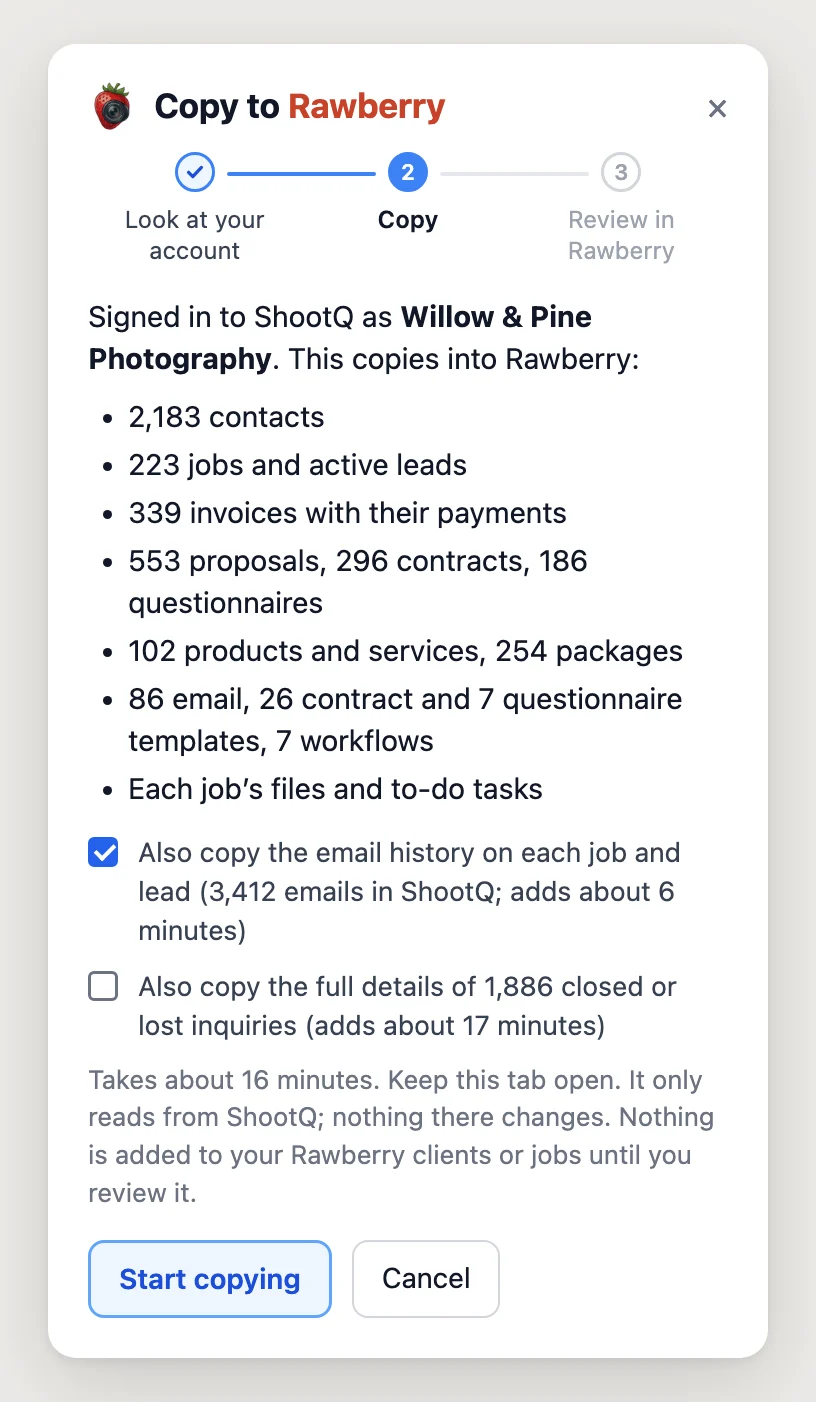
In ShootQ. -
Let it copy
Keep the tab open. A typical studio takes 10 to 15 minutes, a little longer with email history. A bar shows how far along it is and roughly how many minutes are left. You can keep working in your old CRM while it runs. It only reads, so nothing there changes.
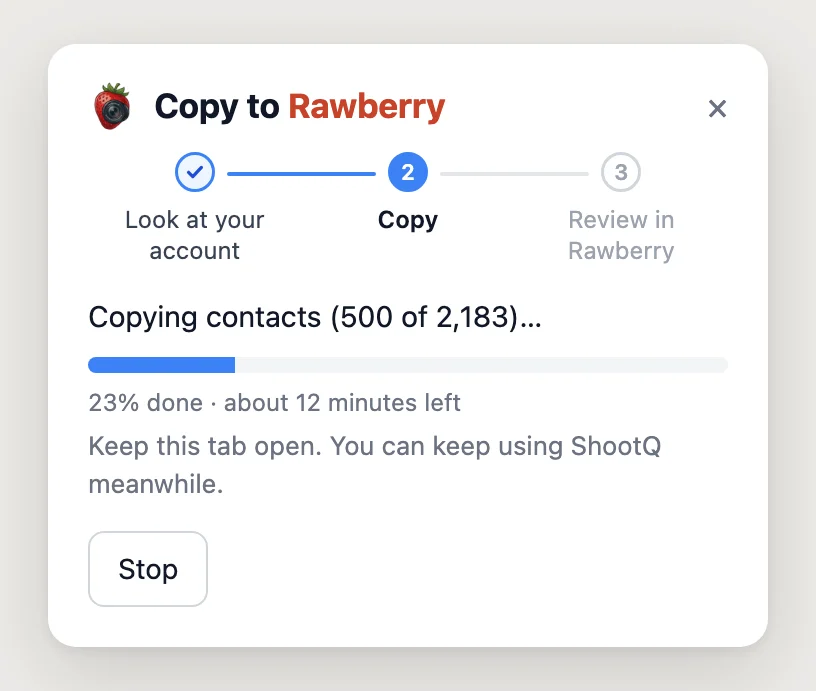
A progress bar shows how much is done and how long is left. 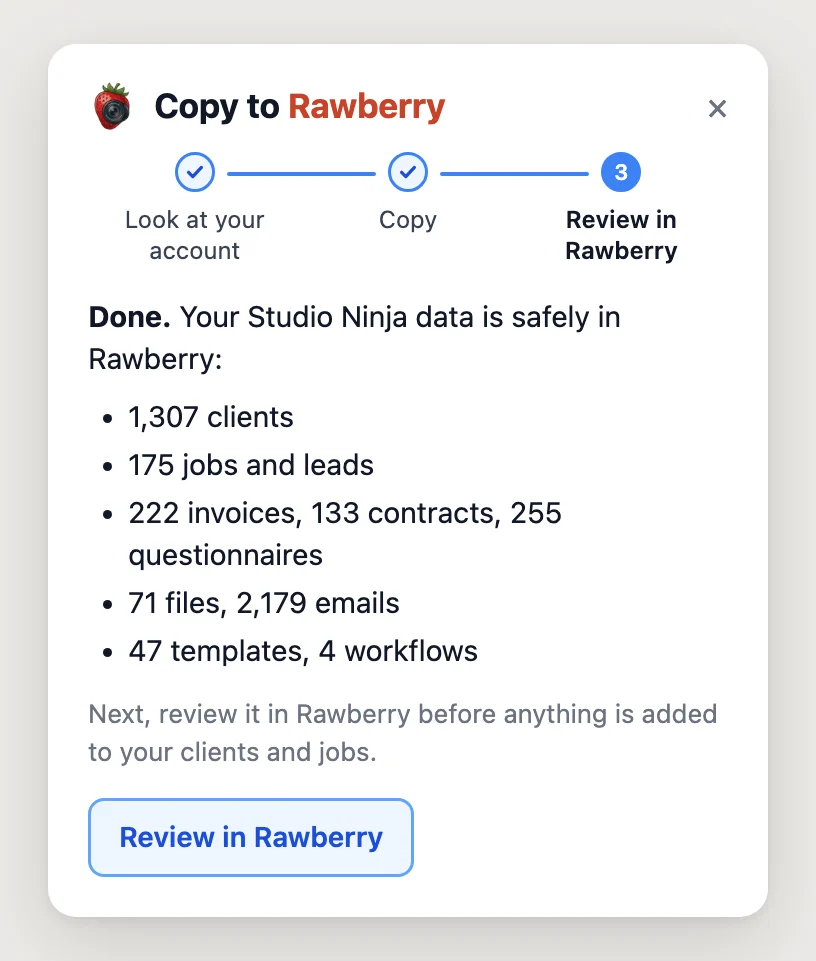
When it's done, one click takes you back to Rawberry. -
Review what will be added
Nothing has touched your Rawberry clients or jobs yet. The review screen shows how many of each record will be added, with real examples, and how many are already in Rawberry and will be skipped. Clients are matched by email, jobs by name and date, invoices by number, so you never get duplicates, and it's safe to run again later.
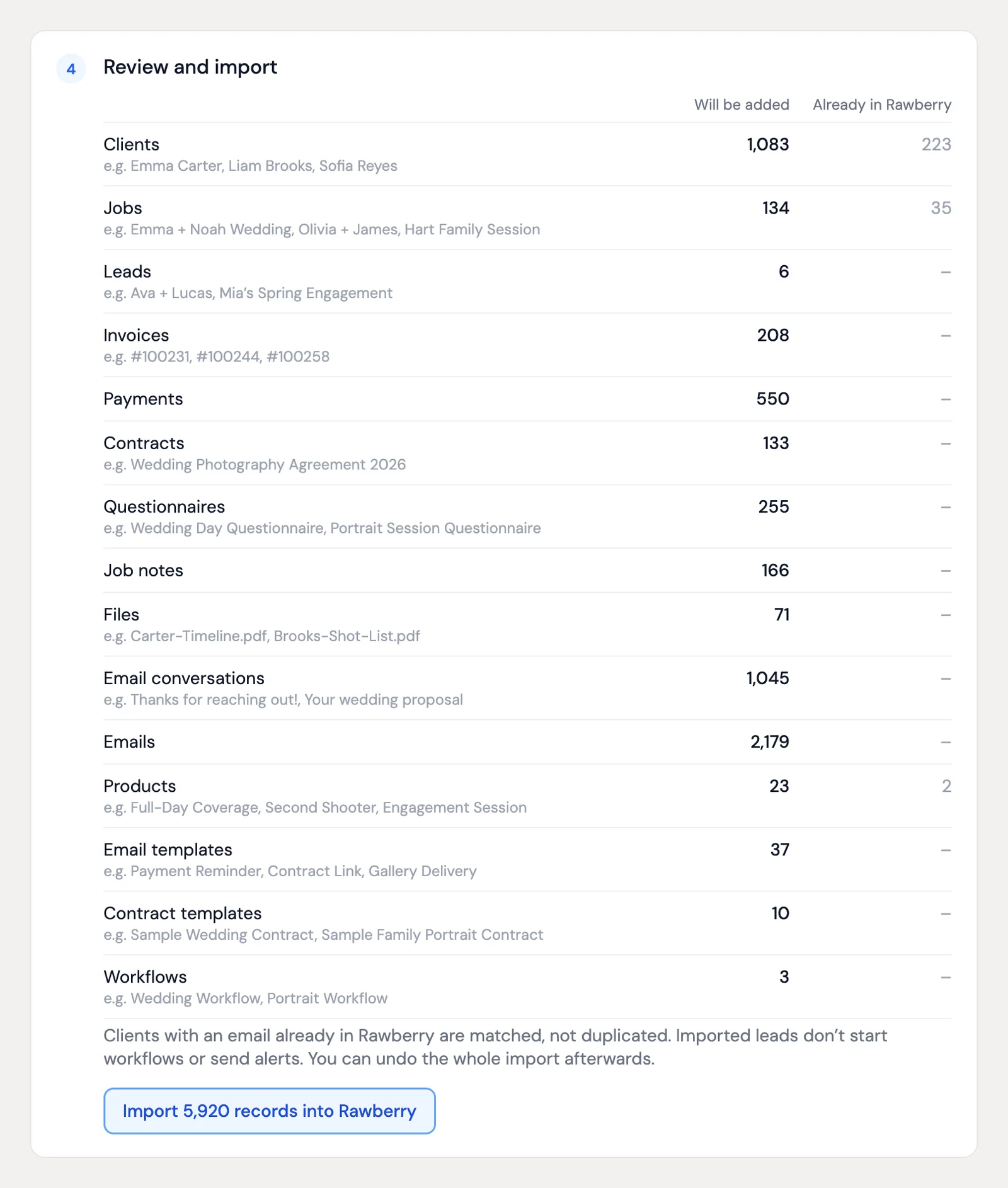
“Already in Rawberry” means a record you'd added before was matched and won't be copied twice. -
Import, and undo if you need to
Click Import. Your clients, jobs, invoices and templates show up in Rawberry right away. Imported leads don't start workflows or send alerts, and imported workflows arrive switched off, so no client gets a surprise email. If anything looks wrong, Undo this import removes all of it.
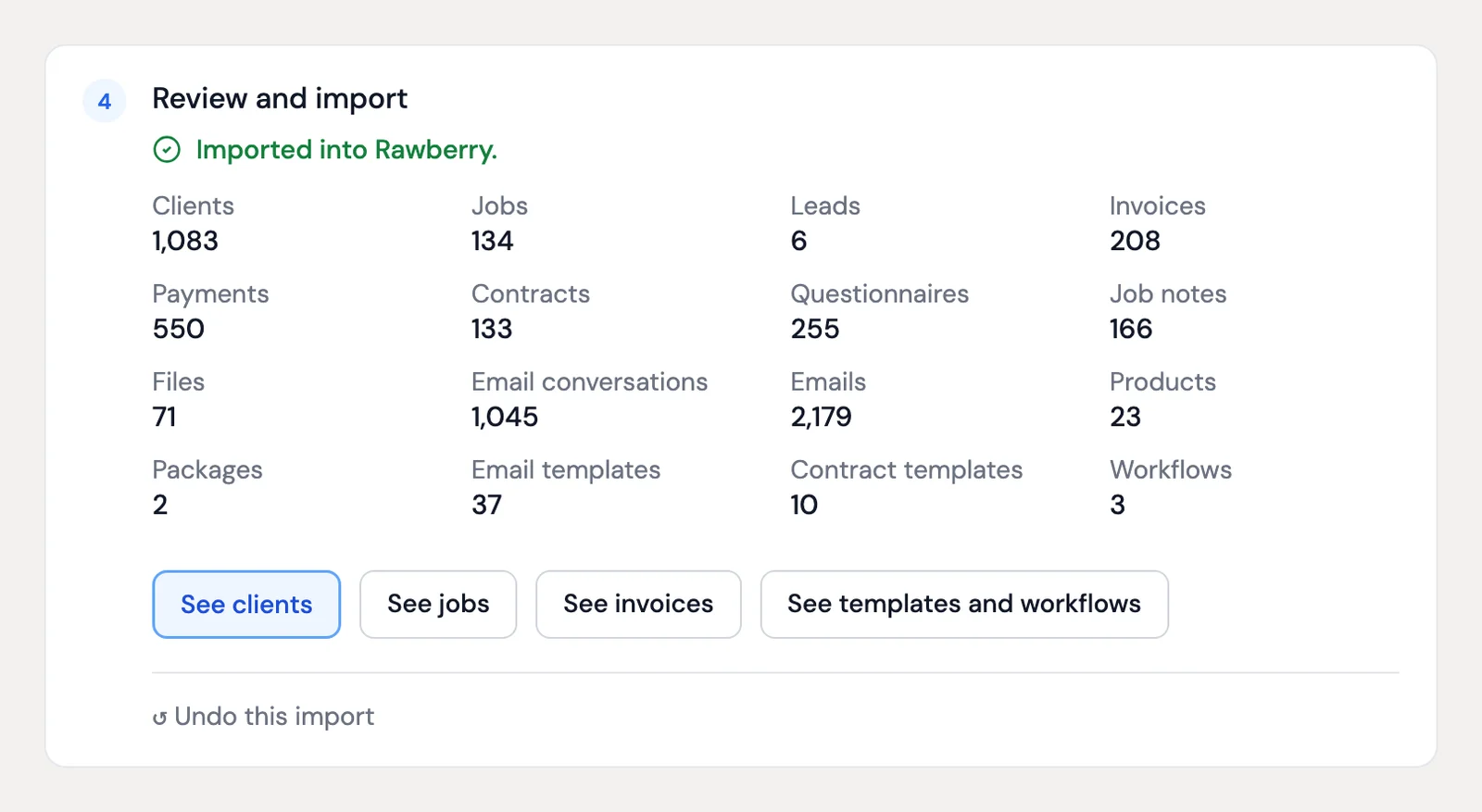
Jump straight to your clients, jobs, invoices or templates, or undo the whole import.
What to check after
The importer handles the heavy lifting. A few things are worth a quick look before you cancel your old plan.
Good to know
- Contract templates that use package or current-date fields may need a quick edit.
- Workflows arrive switched off. Check the steps, then turn them on.
- You need a desktop browser. The bookmarks-bar button doesn't work on a phone.
Rather we did it?
- Our team will run the move for you, free on every plan, and a person checks the import before you switch.
- Coming from HoneyBook, Dubsado, VSCO Workspace, 17hats or Pixieset? We move those too. Email hello@rawberry.ai.
- Still deciding? Read our honest comparison of photography CRMs.
Questions about switching
How do I export my data from Studio Ninja?
Studio Ninja doesn't offer a full export of jobs, invoices, contracts and emails. Rawberry's free importer does it for you: you click a one-time Copy to Rawberry button while logged in to Studio Ninja, and it copies your clients, jobs, leads, invoices, payments, contracts, questionnaires, files, notes, job tasks, email history, templates, products, packages and workflows in about 13 minutes.
How do I migrate from ShootQ to another CRM?
Make an import button in Rawberry under Integrations, log in to ShootQ, and click Copy to Rawberry in your bookmarks bar. It copies contacts, jobs, leads, invoices with payments, proposals, contracts, questionnaires, products, packages, notes, job tasks and files, email history and your email, contract and questionnaire templates and workflows, usually in about 10 to 15 minutes. You review it all before anything is added.
Is it safe? Does Rawberry see my Studio Ninja or ShootQ password?
No. The copy runs in your own browser, in the tab where you're already logged in, so Rawberry never sees your password. It only reads from your old CRM and changes nothing there. The button is made for your studio alone and works only for that one import.
Will importing create duplicate clients?
No. Clients are matched by email, jobs and leads by name and date, invoices by number and contracts by name, so anything already in Rawberry is skipped. That makes it safe to run the import again later to pick up anything new.
Can I undo the import?
Yes. After the import, an Undo this import link removes everything that import added, in one step. Imported leads also don't start workflows or send alerts, and imported workflows arrive switched off, so no client gets an unexpected email.
How much does it cost to switch?
Nothing. The importer is free on every Rawberry plan, including the free Starter plan. If you'd rather not do it yourself, Rawberry's team will run the move for you, also free.
What doesn't come across?
Contract templates that use package or current-date fields may need a quick edit, and workflows arrive switched off so you can check them before turning them on. Closed or lost leads are optional, because most studios don't want years of old inquiries in their leads list.